


How to Setup Gmail for Business: A Step-by-Step Guide
Posted: July 16, 2024 | Updated:
Operating a business may necessitate setting up a professional email account. An address such as name@companyname.com signals your affiliation with a legitimate organization, which can help establish trust and credibility. A Gmail for business is one of the best options available today. After you set up Gmail for business, you get additional storage, superior organizational tools, and better security than free services. So, let us start with this comprehensive step-by-step guide about setting up a Gmail for your business.
Why Opt for a Business Gmail Account Over a Free Gmail Account?
A free Gmail or Google account provides access to basic Google services and limited online storage. While setting up a free Gmail as a business email is possible, the tools and features are basic and limited.
The primary distinction lies in the email domain. Unlike the standard free Gmail, a business Gmail account, part of Google Workspace, requires you to own a domain address to which all communications are directed. Your email will not end with gmail.com but will end with your domain like name@companyname.com,
Business Gmail accounts offer higher storage limits and numerous advanced features:
- Email Address: Free Gmail users get a standard @gmail.com email, whereas Google Workspace users can create custom email addresses with their company’s domain, enhancing their professional appearance.
- Storage: Free Gmail includes 15 GB of combined storage for emails and files. Google Workspace’s Basic plan starts with 30 GB to 1 TB per user and offers unlimited storage options in its higher-tier plans.
- Security: While Free Gmail provides basic spam filtering and email encryption, Google Workspace includes advanced security features like data loss prevention, enhanced phishing and malware protection, security key enforcement, and mobile device management.
- Administrative Tools: Free Gmail offers limited administrative tools, lacking controls and reporting capabilities. Google Workspace, in contrast, includes comprehensive admin controls, detailed activity reports, and user and device management features.
- Support and Reliability: Free Gmail users rely on online help resources and community forums. Google Workspace subscribers receive 24/7 phone, email, and chat support and a 99.9% uptime service level agreement.
- Collaboration Tools: Google Workspace enhances collaboration with tools like Google Meet, allowing video calls with up to 250 participants, shared calendars, and additional drive storage. It also includes Google Vault for data retention and eDiscovery.
- User Account Management: Google Workspace allows for centralized management through an admin console, simplifying tasks such as user provisioning and deactivation, which is unavailable with Free Gmail.
These features make Google Workspace a superior choice for businesses seeking enhanced functionality and professional service.
What Is the Cost of a Gmail Business Email?
If you’re considering a Gmail business email, subscribe to Google Workspace, which incurs a monthly charge. The current pricing structure for Google Workspace is as follows:
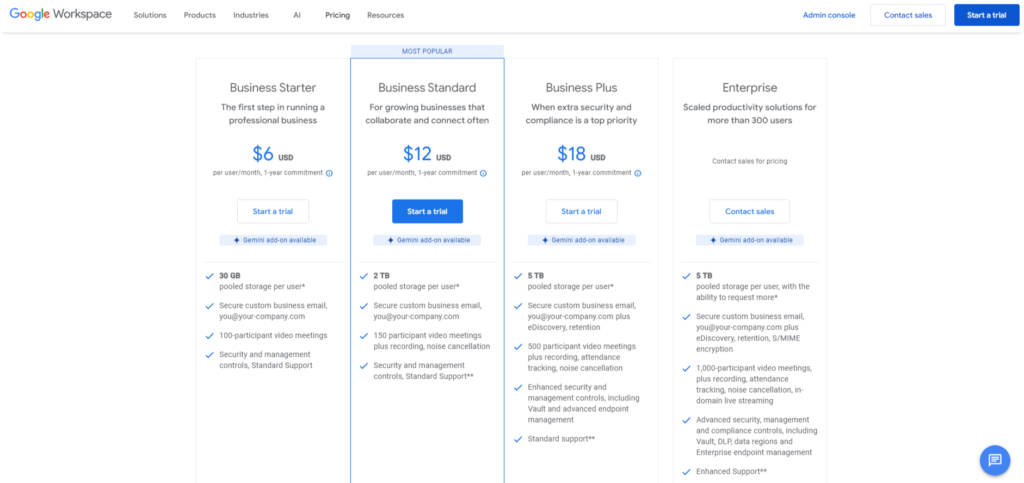
Source: Google Workspace
- Business Starter Plan:
The Business Starter Plan, priced at $7 per user per month ($6 per month billed annually), offers a range of essential services, including a custom and secure business email, the capability to host video meetings with up to 100 participants, and 30 GB of pooled storage for each user. This plan also includes basic security and management controls alongside standard support, making it suitable for small businesses looking for fundamental email solutions.
- Business Standard Plan:
Priced at $14.40 per user per month ($12 per month billed annually), the Business Standard Plan elevates the offerings with enhanced capabilities. It includes all the features of the Starter Plan but expands its video meeting capacity to 150 participants and includes recording functionality.
Users benefit from a significant increase in storage with 2 TB per user. This plan is designed for businesses that need more extensive storage and communication tools.
- Business Plus Plan:
The Business Plus Plan is available for $21.60 per user per month ($18 per month billed annually) and is tailored for larger businesses requiring advanced features. This comprehensive plan includes all the functionalities of the previous plans. It adds eDiscovery and data retention capabilities, supports video meetings for up to 500 participants with recording and attendance tracking features, and offers a substantial 5 TB of pooled storage per user.
This package includes enhanced security and management controls and standard support, providing a robust solution for enterprises with complex needs.
Additionally, there is one Enterprise plan, it includes customized Google Workspace pricing. This plan provides tailored solutions designed for large organizations. Pricing is personalized, and the features extend beyond those in the Business Plus plan to include advanced security, management, and compliance controls. Enterprise customers also benefit from enhanced support from Google.
Setup Gmail for Business: A Step-by-Step Guide
If you plan to establish a Gmail account for business purposes, here’s a detailed guide to help you through the process.
Step 1: Sign Up for Google Workspace for Your Business Email
To set up a Gmail business account, you must create a Google Workspace account. Then, start by selecting a subscription plan that fits your business requirements—options include Basic, Business, or Enterprise plans.
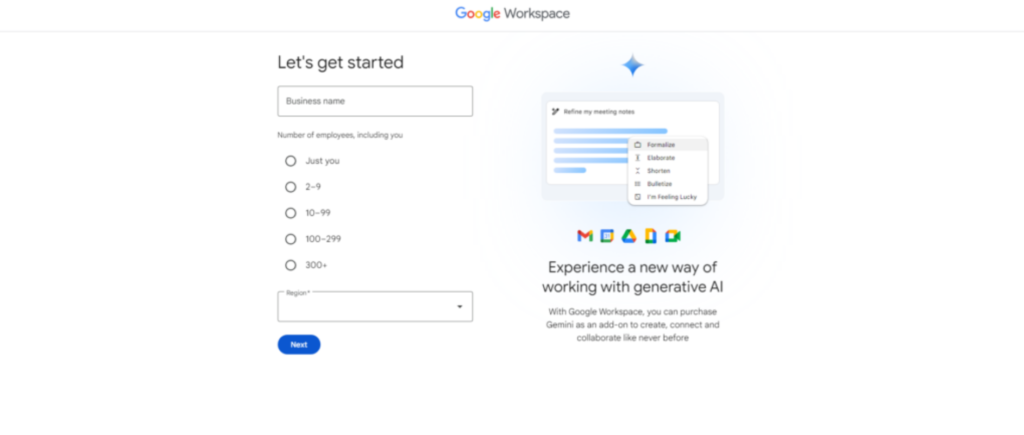
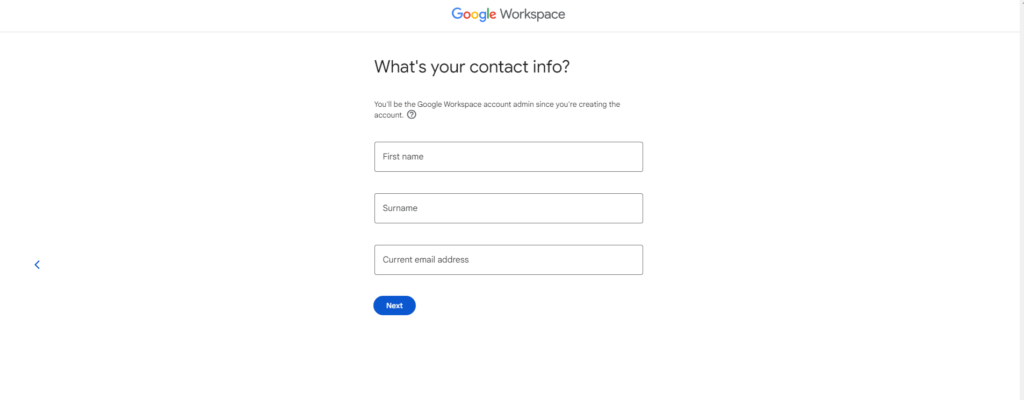
You’ll need to provide details about your business, such as your company’s name, country or region, contact details, and the number of employees. This information allows Google to tailor your Workspace experience. Choose a plan that fits your budget and meets your needs, considering the importance of collaboration tools, storage options, and security features.
Enter your business name and a few other details.
Enter your contact info.
Choose the correct domain option.

Step 2: Use Your Domain (or Create One from Google)
Once you complete the initial setup questions, the next action in setting up a Gmail account for business involves connecting an existing email domain or acquiring a new one. You’ll see a prompt asking if you want to use an existing business domain with Google Workspace for your business Gmail.
If you don’t already own a domain, selecting “Get a new custom domain” will direct you to a page where you can purchase one through Google.
Case 1: If You Already Have a Domain

If you already have a domain name that you want to use for your business email, start by entering it. This begins the domain name verification process, allowing Google access to your domain. Follow the instructions on the screen to verify your domain ownership and finish setting up.
Next, to verify and grant Google access to your domain name, visit the admin console homepage of your domain name registrar. Here, you must input the mail exchange (MX) records provided by Google Workspace into your DNS settings. Follow the prompts provided on the registrar’s admin console homepage.
Case 2: If You Don’t Have a Domain

To obtain a new domain name for Gmail for Business, follow these steps:
- Register for Google Workspace.
- Provide your business details.
- When prompted whether your business has a domain, select “No, I need one.”
- Specify the domain name you wish to register.
- Select a top-level domain such as .com or .edu.
- Complete the subsequent steps to set up your Google account.
- Confirm your email address within 15 days.
Alternatively, you can acquire a domain through other providers. Affordable options include domain registrars like Namecheap and GoDaddy.
Step 3: Sign Up With Your Business Email
The next step is to select a username and password for your business email, which will also serve as your Google username for various Google Workspace services.
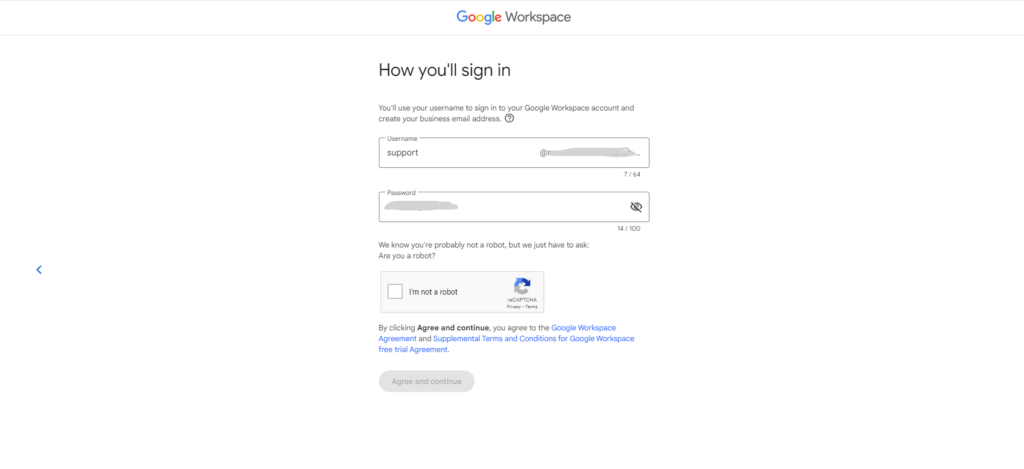
Choose an email address thoughtfully, ensuring it’s memorable for you and your team. You might opt for your first name, last name, or a combination of both, but aim for consistency throughout your organization.
When creating a password, balance memorability with security. Since your business account contains crucial information, avoid simple passwords. Incorporate numbers and special characters to enhance security.
Once you’ve entered your details, verify your identity by confirming you are not a robot, then click “Agree and Continue” to proceed.
Step 4: Set Up Your Payment Method
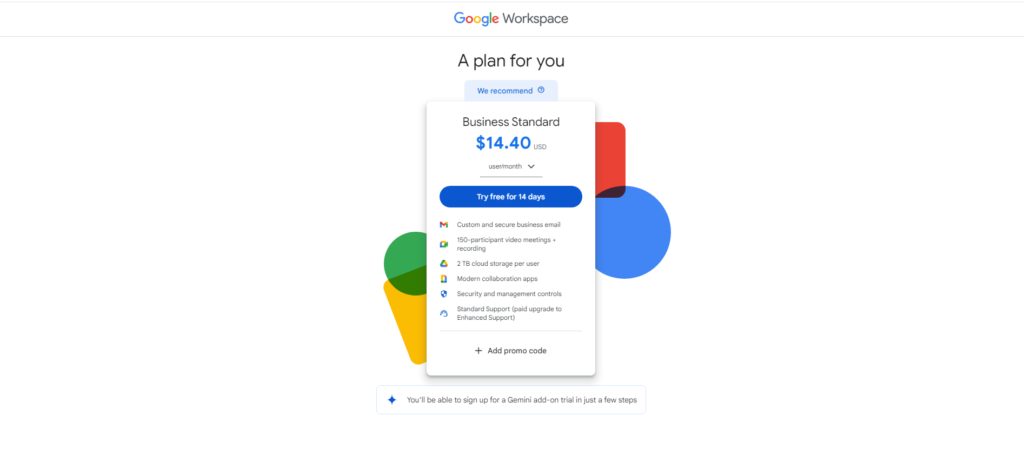
Initially, you must opt for a Workspace license to activate your account. Gmail offers a 14-day free trial, allowing you to explore its interface and features without immediate payment. The default subscription setting is Business Standard, but you can switch to a different plan during the trial period. Click “Next” to checkout and use your Gmail business email.

If you discontinue the service before the trial ends, you can cancel your subscription without cost. Billing options for all plans include monthly or annual cycles, with the annual option providing a cost advantage.
Step 5: Verify Your Domain and Activate Your Business Gmail
Once you have completed the initial process of creating your account, the next step is to prove that you are the domain owner. The steps are simple: add a DNS record to your domain DNS manager and verify.
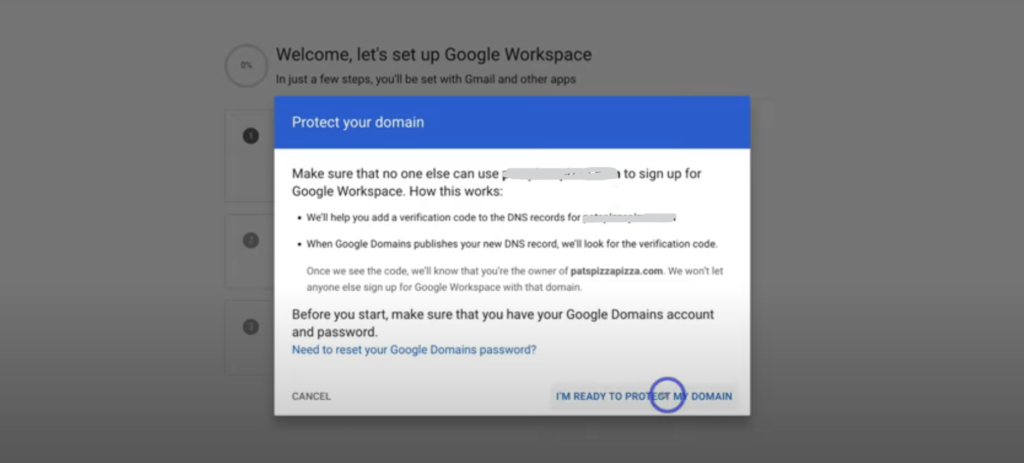
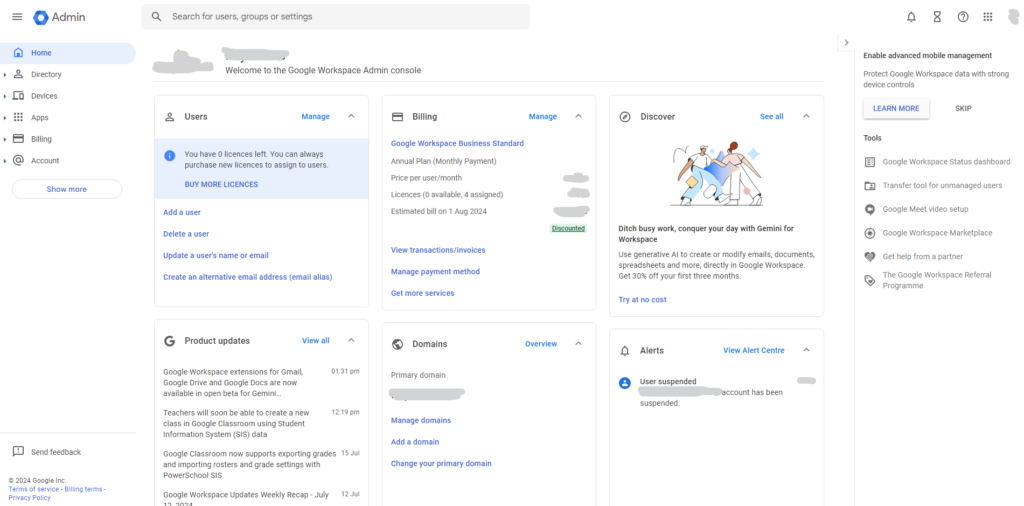
Once the domain is verified, you will have to make the user you initially created the primary owner of your Google Workspace Admin console.

After you set up an admin for the Google Workspace Admin console, you will be asked to add the user (business Gmail) and activate it.
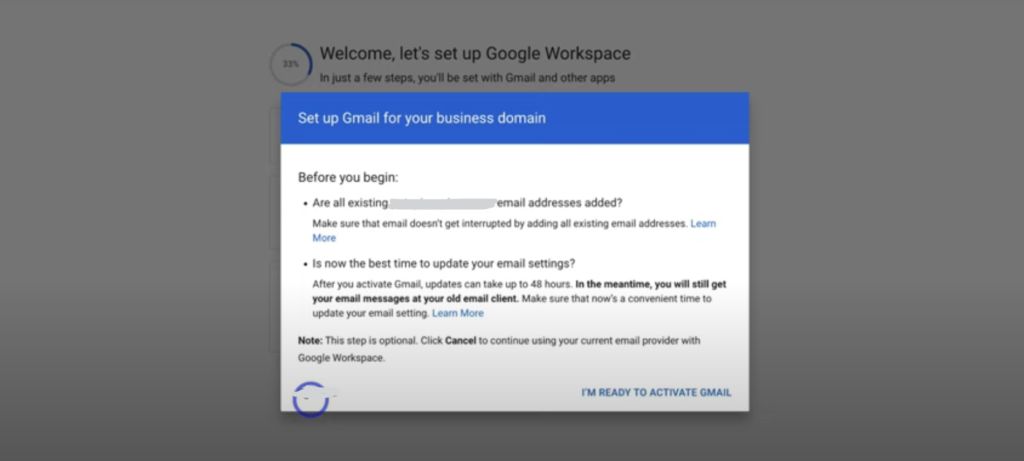
The screenshot is for the domain purchased from Google
Once this process is completed, you can use your business email once activated. You can log in to https://admin.google.com to manage your console.
Migrating Your Email
Once your new Gmail for business account is successfully set up, you will gain access to a comprehensive range of Google productivity and collaboration tools. Email migration is your next step to transfer your existing emails to your new Gmail account.
If your old email account uses Post Office Protocol 3 (POP3), remember that it downloads emails to your local machine and typically deletes them from the server unless expressly set to do otherwise. Email stored locally cannot be moved directly through server-based migration tools during migration. On the other hand, Internet Message Access Protocol (IMAP) maintains a copy of each email on the server. If your previous setup used IMAP, all your emails remain accessible on the server and can be migrated to your new Gmail account.
Here are some easy steps to migrate email:
- Start the Data Migration Service: Go to your Google Admin Console, access the “Account” section, and select “Data Migration.”
- Set Up Migration Parameters: In the Data Migration menu, click “Set Data Migration Up.” Choose your Migration Source (the service from which you transfer your emails), determine the start date, and adjust the Migration Options to include or exclude specific data.
- Choose and Prepare Users for Migration: Click “Select Users.” For individual account migrations, choose “Add User.” Select “Bulk upload with CSV” for multiple users to upload a list of accounts via a CSV file. Complete the necessary fields and get the data ready for upload.
- Begin the Migration: Once all settings are configured and all users have been added, click “Start” to begin the email migration process. Verify all settings are correct to ensure a smooth data transfer to your new Google account.
Once migration is complete, verify that all necessary data has been transferred correctly. Check your new Gmail account for all expected emails and folders. Keeping your old email account active for a short period after migration is advisable to ensure no data is lost and that all emails are correctly routed to your new Gmail address.
Optimizing Gmail for Business Use: Essential Tips and Strategies
Understanding how to create a business email using Gmail is just the first step in unlocking Gmail’s full potential for business purposes. Google Workspace offers various features designed to enhance productivity.
- Adjust Your Email Settings:
You can access the Settings option in Gmail by clicking the gear icon in the upper right corner. Here, you can modify your profile picture, choose an email theme, and organize your inbox according to your needs.
- Expand Your Team’s Email Access:
To add new members to your business Gmail, navigate to the Admin console, select “Home,” then “Users,” and click on “Add a user.” Complete the required information to set up each new account.
- Create Professional Email Signatures:
Establish standardized email signatures for all employees, including contact information, job titles, and the company logo, to enhance your organization’s professional image and recognition.
- Train Your Staff:
Offer regular training sessions to educate your team on efficient email management, effective communication, and security practices. This will help minimize errors and enhance security.
- Implement Email Usage Policies:
Establish and communicate clear email policies that cover security practices and data protection. Ensure all staff members are aware of and adhere to these policies.
- Manage Emails with Filters and Labels:
Use Gmail’s filters and labels to organize incoming emails automatically by sender, subject, or keywords. This organization aids in efficiently managing the volume and priority of incoming communications.
- Monitor Email Activity:
Review email usage regularly and perform audits to detect unusual behavior or unauthorized access, ensuring proactive measures against threats like phishing and malware.
- Enable Two-Factor Authentication (2FA):
Increase account security by enabling two-factor authentication, which requires a second form of identity verification, such as a code from a smartphone or a security key, to access email accounts.
- Backup Email Data:
Maintain a regular schedule for email data backup to avoid data loss. Utilize Google’s built-in backup solutions or explore third-party options for enhanced protection.
Conclusion
Setting up Gmail for business provides significant advantages over using a free Gmail account or any other business email options for small businesses. A Gmail business account under Google Workspace enhances credibility and efficiency with a professional email address, enhanced security, increased storage, and superior administrative tools. The process involves signing up for Google Workspace, choosing a suitable plan, and either using an existing domain or acquiring a new one.
By following these steps, businesses can establish a professional communication platform that supports collaboration and productivity. Optimizing Gmail through various settings and practices ensures the company can fully leverage Google Workspace’s capabilities to streamline operations and maintain robust security measures.