


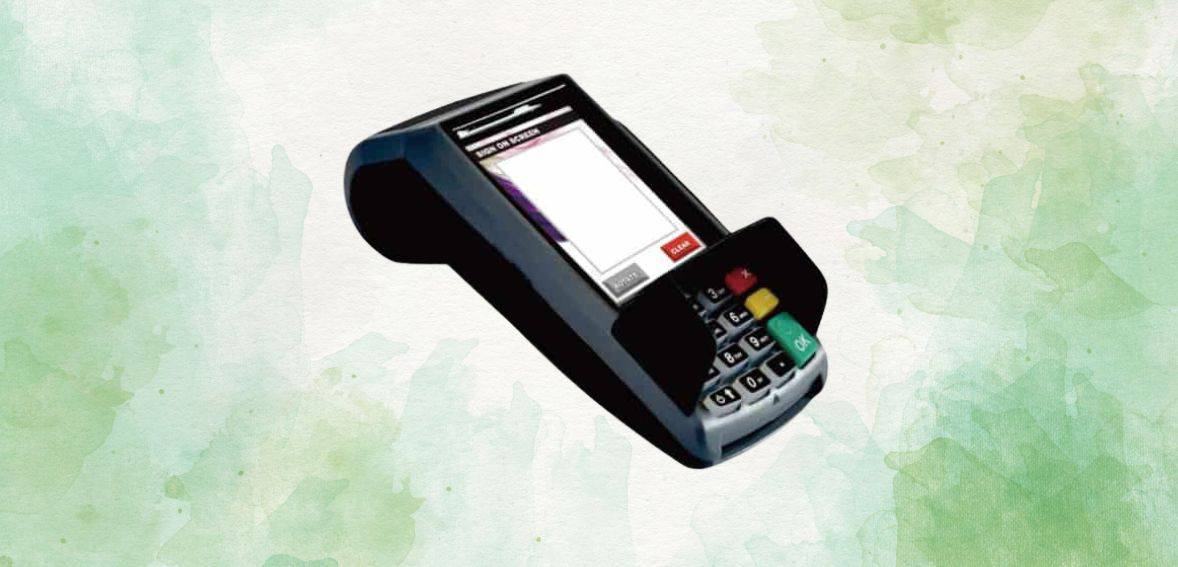
Dejavoo Z9 Quick Reference Guide
Posted: January 25, 2023 | Updated:
The Z9 model by Dejavoo is known for its versatility as a payment terminal offering businesses a range of features and connectivity options. With built-in 4G connectivity, the Z9 ensures secure and fast transaction processing in areas with Wi-Fi or Ethernet access. It supports different payment types, including NFC and EMV empowering businesses to offer multiple payment options to their customers.
The terminal’s user-friendly interface and good-quality touchscreen display make it a popular choice for businesses of all sizes. Additionally, its sturdy construction guarantees durability for extensive usage. For businesses in need of performance and advanced features, the Dejavoo Z9 is the best choice for a payment terminal that can seamlessly align with their operational needs.
In this in-depth guide, we will provide you with an overview of how the Z9 functions to help you set it up easily. First let’s take a look, at the features Dejavoo Z9 offers.
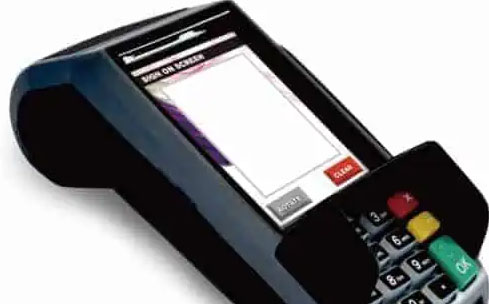
Image source: Dejavoo
Key Features of the Dejavoo Z9 Payment Terminal
The Z9s WiFi Payment Terminal offers features that aim to enhance the user experience and faster payment processing. Here’s an overview of what it can do;
- Integrated NFC and EMV contactless technology.
- Vivid 2.4″ xolored LCD screen.
- The device has a memory capacity of 192 MB with DDR 64MB RAM and 128MB RAM.
- It is certified for PCI PTS ensuring smooth and safe transactions.
- It meets the requirements of EMV 4 x L2 & L1 standards.
- This terminal supports payment standards, like MasterCard, PayPass, Visa payWave JCB J/Speedy, and American Express.
- Powered by a high-speed microprocessor running at 400MHz this terminal offers quick processing capabilities.
- With its sturdy and portable design, the terminal provides convenience. Also allows for additional base and handset units if needed.

Image source: Dejavoo
How To Run a Transaction on a Dejavoo Z9
How To Run a Chip Credit Sale on a Dejavoo Z9
1. Tap on the CREDIT icon on your terminal home screen.
2. Tap on the SALE icon.
3. Input the SALE AMOUNT and press OK.
4. Tap (contactless only) or insert a chip card.
5. If prompted, confirm the sale amount by tapping YES or NO. Conditional on the terminal’s configuration.
6. The transaction is processed. Sales receipts will be printed on your Dejavoo Z9 with details of the transaction.
How To Run a Manually Entered Credit Sale on a Dejavoo Z9
1. Tap on the CREDIT icon on your Dejavoo Z9 home screen.
2. Tap on the SALE icon.
3. Input the SALE AMOUNT and press OK.
4. Manually input card #.
5. Follow the CNP prompts (input exp. date, ZIP code, etc). Conditional on the terminal’s configuration.
6. The transaction is processed. Sales receipts will be printed on your Dejavoo Z9 with details of the transaction.
How To Run a Debit Sale on a Dejavoo Z9
1. Tap on the DEBIT icon on your terminal home screen.
2. Tap on the SALE icon.
3. Input the SALE AMOUNT and press OK.
4. Tap (contactless only), swipe, or insert a chip card.
5. If prompted, confirm the sale amount by tapping YES or NO. Conditional on the terminal’s configuration.
6. The cardholder inputs the PIN on the terminal PIN Pad or external PIN Pad and presses OK.
7. The transaction is processed. Sales receipts will be printed on your Dejavoo Z9 with details of the transaction.
Understanding Void Transactions on a Dejavoo Z9
A void transaction refers to the cancellation of a debit or credit card transaction by the merchant before it gets settled by the cardholder’s bank, and payment is received by the merchant. This cancellation often occurs when either the customer or the merchant identifies an error or suspects fraudulent activity.
When a credit or debit card transaction is initiated on the Z9 terminal, the terminal electronically transmits the information through a card network. Subsequently, the network assesses the validity of the card, and the customer’s bank verifies if there are sufficient funds or adequate credit to cover the charge. Upon authorization, the transaction proceeds. If issues arise, prompting the need for cancellation, the merchant can execute a void, preventing the completion of the transaction.
There are basically two types of card void transactions – Card Present and Card Not Present. Here’s How each type of transaction works.
How To Void a Transaction on a Dejavoo Z9
How To Void a Card Present Transaction with a Dejavoo Z9
1. Tap on the CREDIT icon on your terminal home screen.
2. Tap on the VOID icon.
3. Input the VOID AMOUNT and press OK.
4. If prompted, confirm the void amount by tapping OK or CANCEL. Conditional on the terminal’s configuration.
5. If prompted, input Manager Password (1234 default).
6. Tap (contactless only) or insert a chip card.
7. The transaction is processed. Void receipts will be printed on your Dejavoo Z9 with details of the transaction.
How To Void a Card Not Present Transaction with a Dejavoo Z9
1. From the idle prompt, tap the STAR icon to access the FAVORITES menu.
2. Tap VOID TRANSACTION.
3. If prompted, input Manager Password (1234 default).
4. Tap BY TRANSACTION #.
5. Input TRANSACTION # to be voided and press OK.
6. Confirm the void transaction by tapping SELECT.
7. If prompted, confirm the void amount by tapping OK or CANCEL. Conditional on the terminal’s configuration.
8. If prompted, input Manager Password (1234 default).
9. The void is processed. Void receipts will be printed on your Dejavoo Z9 with details of the transaction.
How To Process a Return on a Dejavoo Z9
1. Tap on the CREDIT icon on your terminal home screen.
2. Tap on the RETURN icon.
3. Input the RETURN AMOUNT and press OK.
4. Tap (contactless only), swipe, insert a chip card, or manually enter card #.
5. If prompted, confirm the sale amount by tapping YES or NO. Conditional on the terminal’s configuration.
6. The transaction is processed. Sales receipts will be printed on your Dejavoo Z9 with details of the transaction.
How To Settle Your Current Batch on a Dejavoo Z9
1. From the idle prompt, tap the STAR icon to access the FAVORITES menu.
2. Tap SETTLE DAILY BATCH.
3. If prompted, input Manager Password (1234 default).
4. The Dejavoo Z9 communicates with the host.
5. Settlement Report prints on your Dejavoo Z9.
How Do I Connect My Z9 to Wi-Fi?
Connecting the Dejavoo Z9 to WiFi involves the following steps:
- From the main credit sale screen, tap the WiFi symbol in the upper left-hand corner.
- Select on the WIFI option.
- Choose SCAN NETWORK.
- Choose the network name that you want.
- Select CONFIGURE.
- Choose “SET PASSWORD.”
- After entering the password for your network, hit the OK key.
Frequently Asked Questions